Excel Feature Improvements

Article Overview

Monkey Tools offers several Excel feature improvements to build a better user experience. While the vast majority of these features are custom-built to expand Excel’s functionality, there are a few which actually replace Excel’s built-in functionality.  

Of course, while we believe our updated features are better than the defaults, you may want the ability to turn one or two off… Maybe you don’t like our version, or maybe you’re recording training videos for users who don’t have Money Tools installed. Whatever the reason, we don’t want you to have to uninstall Monkey Tools to get back to Excel’s ‘out of the box’ experience.

The purpose of this article is to tell you exactly which features we override by default, as well as how to tell Monkey Tools to use Excel’s default behaviour for those features if needed.

Replaced: Home Tab's Alignment Group

We have a saying amongst Excel pros, “Friends don’t let friends merge cells… we teach them a better way.” And that is the philosophy here.

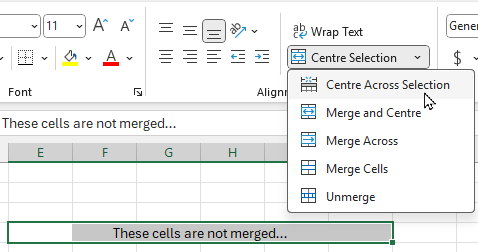
Monkey Tools adds the “Centre Across Selection” button to your Merge and Center menu.

Notable features:

  1. Spelling is based on your regional settings. Users of “en-US” language settings will have this spelled ‘Center Across Selection’. The rest of us see ‘Centre Across Selection’
  2. The top of this button applies the Centre Across Selection over all selected cells at once. (No need to drop down the menu!)
The Merge and Center menu with a new Centre Across Selection button
Friends don't let friend merge cells... they teach them a better way

Replaced: Excel's Create Table Dialog

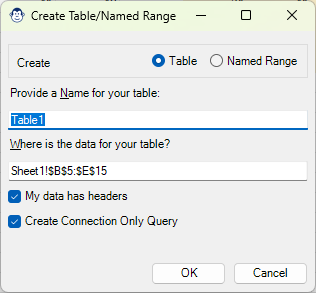
Another feature that we’ve wanted for years has been the ability to name a table during creation. We finally got tired of waiting, so built it ourselves.

The feature overrides the Create Table dialog triggered via:

  • CTRL + T, CTRL + L
  • Insert -> Table
  • Data –> Get Data Group –> From Table/Range
  • Data –> Get Data –> Other Sources –> From Table/Range
  • Cell Context Menu -> Get Data From Table/Range

Now, we have our reasons why we think this feature is SUPER important, but we won’t go into all of those here, as we have a complete article on the From Table or Range Monkey.

The From Table or Range Monkey form in action, allowing you to define the Table's name upon creation
CTRL+T allows more options when creating tables with Monkey Tools

Replaced: Table Name Properties Group (Pro License Only)

We refer to this Monkey as our “Rename Table Monkey”, and he’s quite shy. In fact, you’ll never ever see him. But that doesn’t mean he isn’t hard at work when needed.

This Monkey watches for any changes made to a table name, and then quickly scans all Power Queries in the file. For anything it finds that refers to the original name, it will update them to point to the new name automatically! 

Share:

Facebook
Twitter
LinkedIn

Related Posts

Letify Monkey

Article Overview More and more, we’ve been taking advantage of the LET() function when writing our Excel formulas. We find that it makes the formulas


Indent Formula Monkey

Article Overview When building Excel solutions, one of the things we really like to do is indent our formulas. It makes them more readable and
Formula Bar Monkey

Article Overview When writing formulas in Excel, users often create a lot of indented formulas. One of the things that kind of drives us nuts

Excel Feature Improvements

Article Overview Monkey Tools offers several Excel feature improvements to build a better user experience. While the vast majority of these features are custom-built to