Indent Formula Monkey
Article Overview When building Excel solutions, one of the things we really like to do is indent our formulas. It makes them more readable and

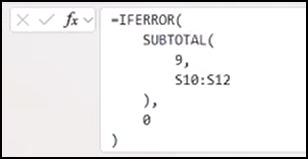
When writing formulas in Excel, users often create a lot of indented formulas. One of the things that kind of drives us nuts is when a cell containing a multi-line formula is selected, you only see the first line. It’s not immediately obvious that there are multiple lines unless you actually very specifically look at the formula bar and notice something missing.
We can press Control+Shift+U to expand the formula bar, but when we select a different cell that doesn’t need the larger formula bar, it is still expanded. We have to go back and press Control+Shift+U to manually collapse it again.
To save users time and keystrokes, we’ve built the Formula Bar Monkey, which is available to all users (even those on a free license).
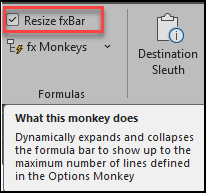
To enable the Formula Bar Monkey, simply check the Resize fxBar box found in Formulas area of the Monkey Tools tab on the Ribbon.
Thereafter, when you select a worksheet cell containing a multi-line formula, the formula bar will automatically expand so you can see more than the first line. When you click on a cell that doesn’t need the expanded formula bar, it will automatically collapse.
This Monkey works by looking for the number of line breaks (created via Alt + Enter) in a cell, and then expands the formula bar up to the maximum number of rows you have set. (You can also still manually expand the formula bar beyond the set maximum, if you want.)
Because this is a Ribbon control, you can right-click and add it to your Quick Access Toolbar. Then, you don’t even have to be on the Monkey Tools tab to turn it on or off.


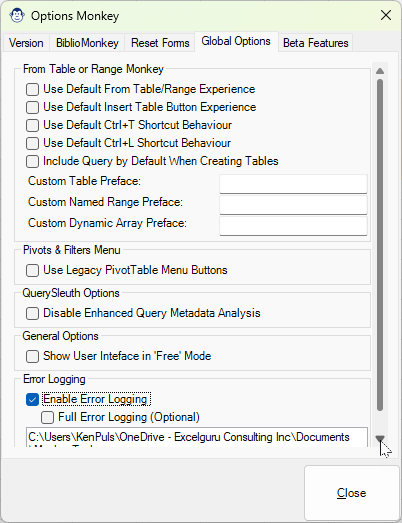
To customize the Formula Bar Monkey, go into Options Monkey > Global Options and look for the Formula Options section.
You can toggle the dynamic resizing option by checking the Turn Off Dynamic Formula Bar Resizing box. You can also enter the maximum number of lines you would like the formula bar will expand to. Click the Close button to save the settings.
Note that this checkbox stays in sync with the Ribbon setting – although it does display as the exact opposite of the Resize fxBar checkbox you see up in the Monkey Tools tab.
These settings will persist across instances of Excel, so if you turn it off in one workbook, it will remain off in the next Excel file you open.
Article Overview When building Excel solutions, one of the things we really like to do is indent our formulas. It makes them more readable and


Article Overview More and more, we’ve been taking advantage of the LET() function when writing our Excel formulas. We find that it makes the formulas

Article Overview Monkey Tools offers several Excel feature improvements to build a better user experience. While the vast majority of these features are custom-built to

Article Overview The Connection Monkey is your one stop shop in order to connect to the various Excel workbooks or Power BI models that Monkey
Article Overview What is an application with Options? Monkey Tools is no difference, and we have a specific Options Monkey to help you control them