Indent Formula Monkey

Article Overview

When building Excel solutions, one of the things we really like to do is indent our formulas. It makes them more readable and easier to understand, which definitely helps in the debugging stage.

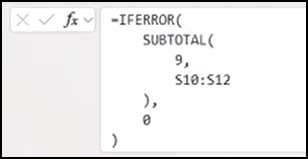
Unfortunately, this is a manual process in Excel. You have to press Alt+Enter for every line break, and you have to line things up with a specific number of spaces because you can’t use the Tab key. And if you have a complex formula that’s several levels deep, you might be pressing the spacebar 10 or more times on each line to do so!

Our answer?  The Indent Formula Monkey gives users an an easy way to indent one or more cells with instantly.

Indenting Excel Formulas

To quickly indent your formula(s), select the desired workbook cell(s) and click Control+Shift+I. Just like that, the formula shown in the formula bar will be indented!

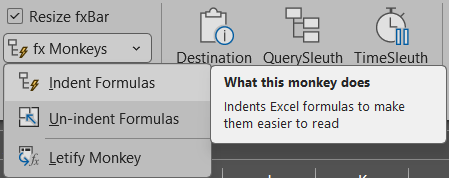
You can also access the feature by going to the Formula Monkeys area of the Monkey Tools tab and clicking on fxMonkeys > Indent Formulas.

Un-indenting Excel Formulas

To un-indent your formula(s), select the desired cell(s), go up to the Formula Monkeys area of the Monkey Tools tab, and click on fxMonkeys > Un-indent Formulas.

All of the formulas will revert back to a single line in the formula bar.

(Note that the Control+Shift+I shortcut does not work to un-indent formulas.)

Disabling the Control+Shift+I Shortcut

Anytime we override Excel’s default behaviour, it’s important that we provide a way to turn off the Monkey Tools feature.

For example, if you have assigned Control+Shift+I to a macro, you do not want formulas to be indended instead of your macro running.

To return to Excel’s standard Control+Shift+I behavior, go into Options Monkey > Global Options and look for the Formula Options section. Check the box for Use Default Ctrl+Shift+I Shortcut Behaviour, and then click the Close button.

This setting will persist across instances of Excel, so if you turn it off in one workbook, it will remain off in the next Excel file you open.

Indenting/Un-indenting Formulas Saved In BiblioMonkey

You can also use the Indent Formula Monkey on any formulas you have saved in your BiblioMonkey library.

To indent, simply launch BiblioMonkey from the Monkey Tools tab on the Ribbon, navigate through to the desired formula, and press Control+I (no Shift key needed here).

Press Control+I a second time will convert the formula to a single (wrapped) line.

Pressing Control+I a third time will return the formula to the original format that is currently stored in the Biblio Monkey database.

Pressing Control+I again will begin the loop again, indenting the formula.

Formulas saved in BiblioMonkey get colour-coded, so it is easier to see what is going on within the formula, like what is Monkey Tools tag versus something else.

Share:

Facebook
Twitter
LinkedIn

Related Posts

Formula Bar Monkey

Article Overview When writing formulas in Excel, users often create a lot of indented formulas. One of the things that kind of drives us nuts


Letify Monkey

Article Overview More and more, we’ve been taking advantage of the LET() function when writing our Excel formulas. We find that it makes the formulas

Excel Feature Improvements

Article Overview Monkey Tools offers several Excel feature improvements to build a better user experience. While the vast majority of these features are custom-built to

Connection Monkey

Article Overview The Connection Monkey is your one stop shop in order to connect to the various Excel workbooks or Power BI models that Monkey
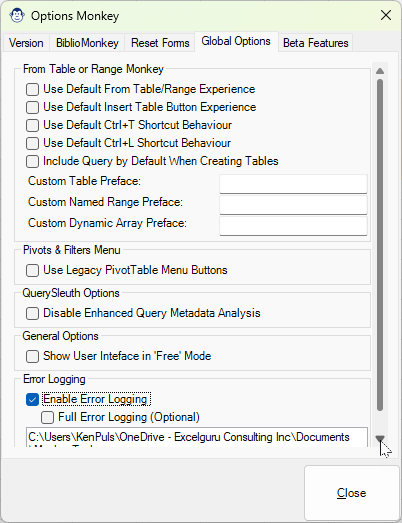
Global Options controlled by the Options Monkey include legacy PivotTable buttons, show the user interface in Free mode, Disable Enhanced Query Metadata Analysis and Error Logging

Options Monkey

Article Overview What is an application with Options? Monkey Tools is no difference, and we have a specific Options Monkey to help you control them